School
Less scrolling.
More paying attention.
 Focus Fence
A little boundary. A lot more focus.
Work, school, home. Choose where distractions stop, and Focus Fence blocks them when you arrive.
Location-based app & website blocking for iPhone.
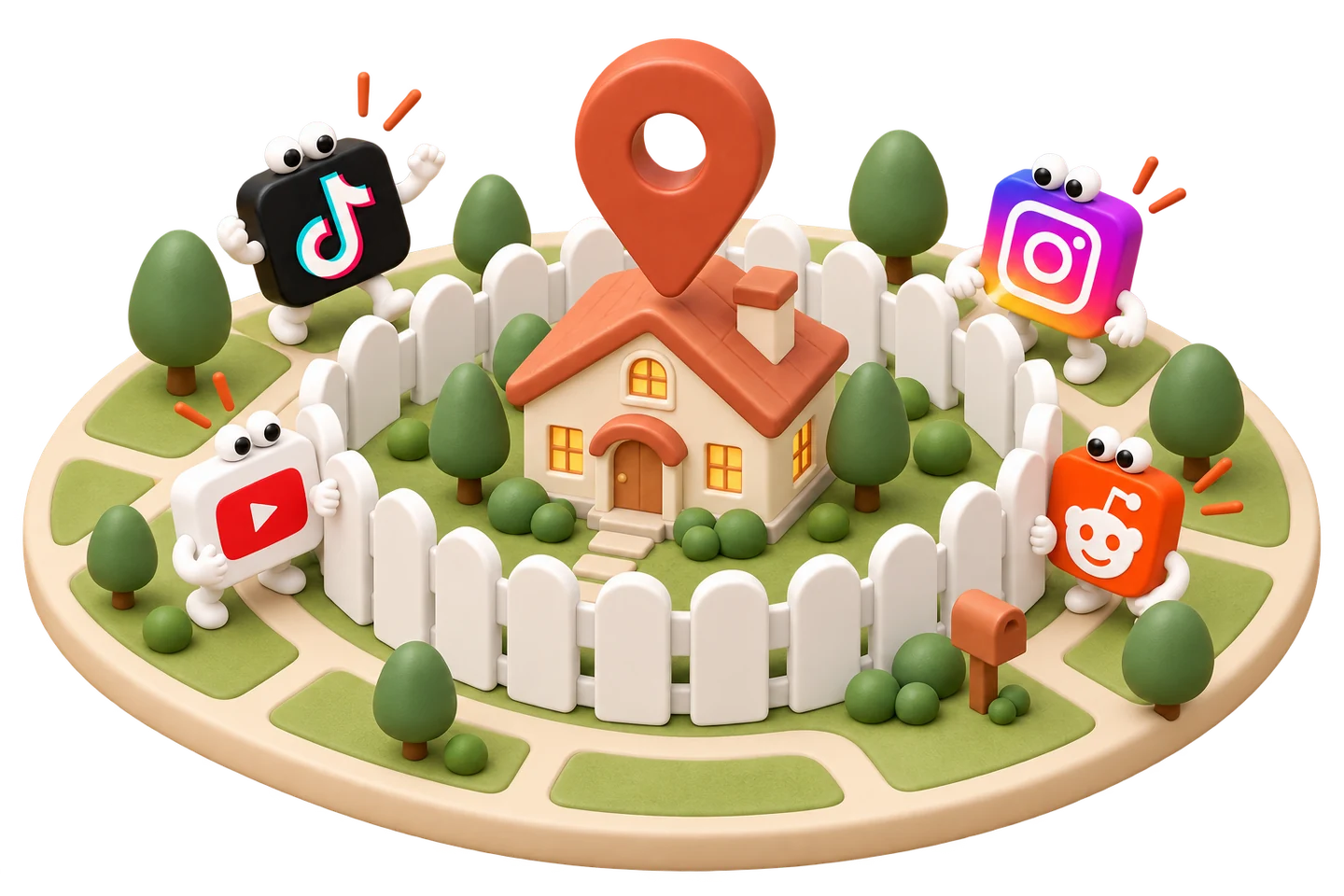

Meet your attention gremlins
One quick check turns into twenty minutes. Put a fence between you and the apps that keep pulling you away.
Block apps and websites together. Keep the essentials available. Get back to what you came here to do.
Give your focus some spaceA fence for every part of your day
Your school day, workday, and downtime don’t need the same distractions.
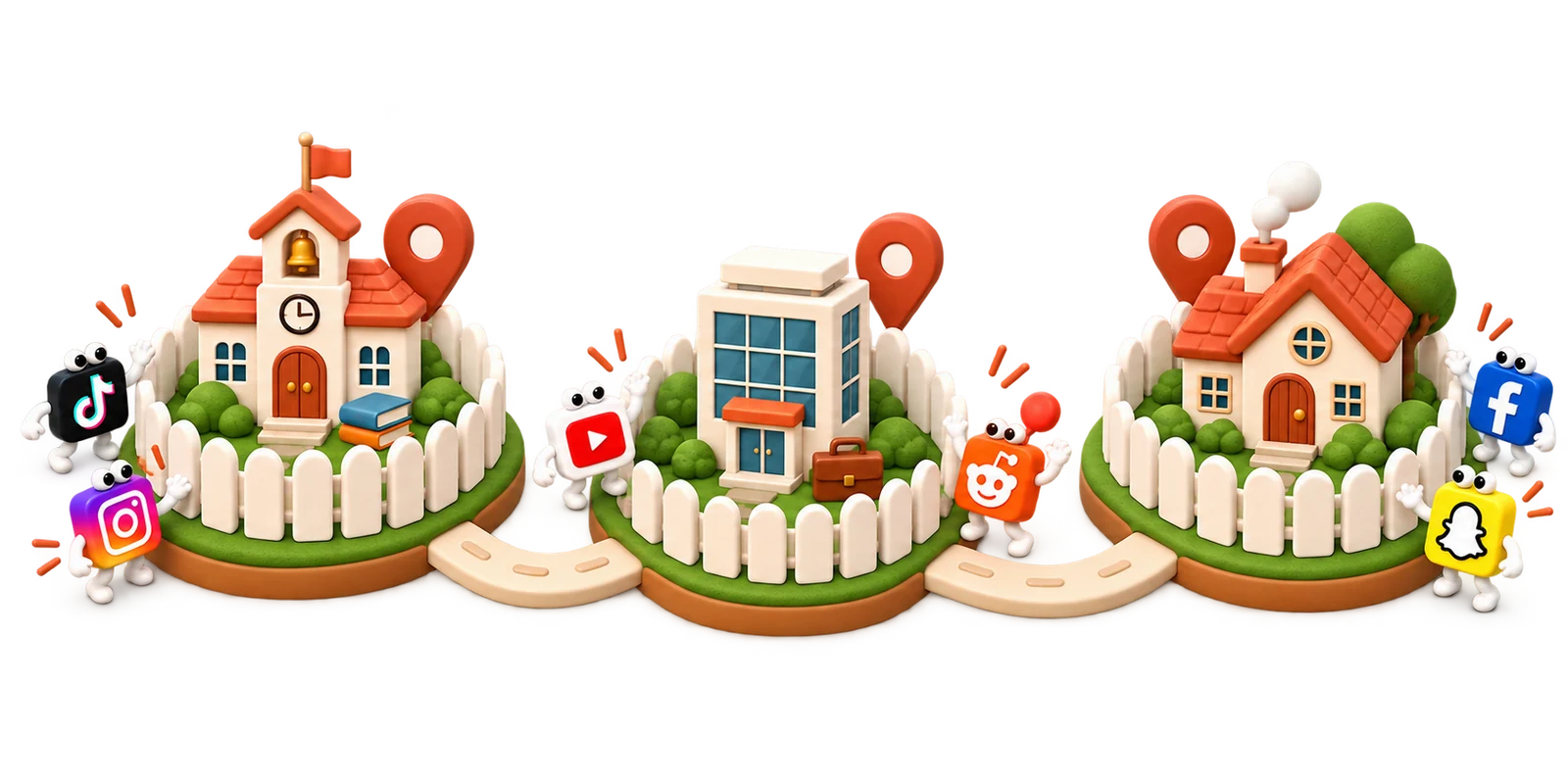
Less scrolling.
More paying attention.
Keep the tools.
Skip the rabbit holes.
Put down the feed.
Be where you are.

Fences on a schedule
Give your home fence a bedtime. Choose when it can block distracting apps and websites, so one last scroll doesn’t become a late night.
Your fence follows this schedule while you’re at home.
Make room for bedtimeA few choices. A calmer routine.
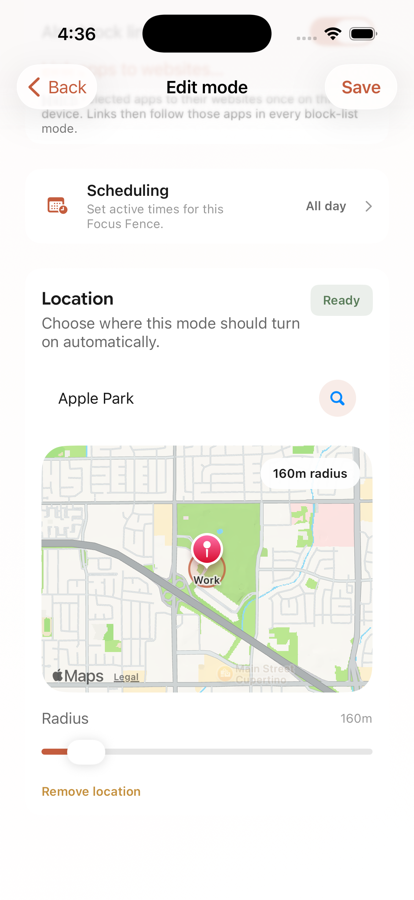
Find it on the map and adjust the boundary to fit.
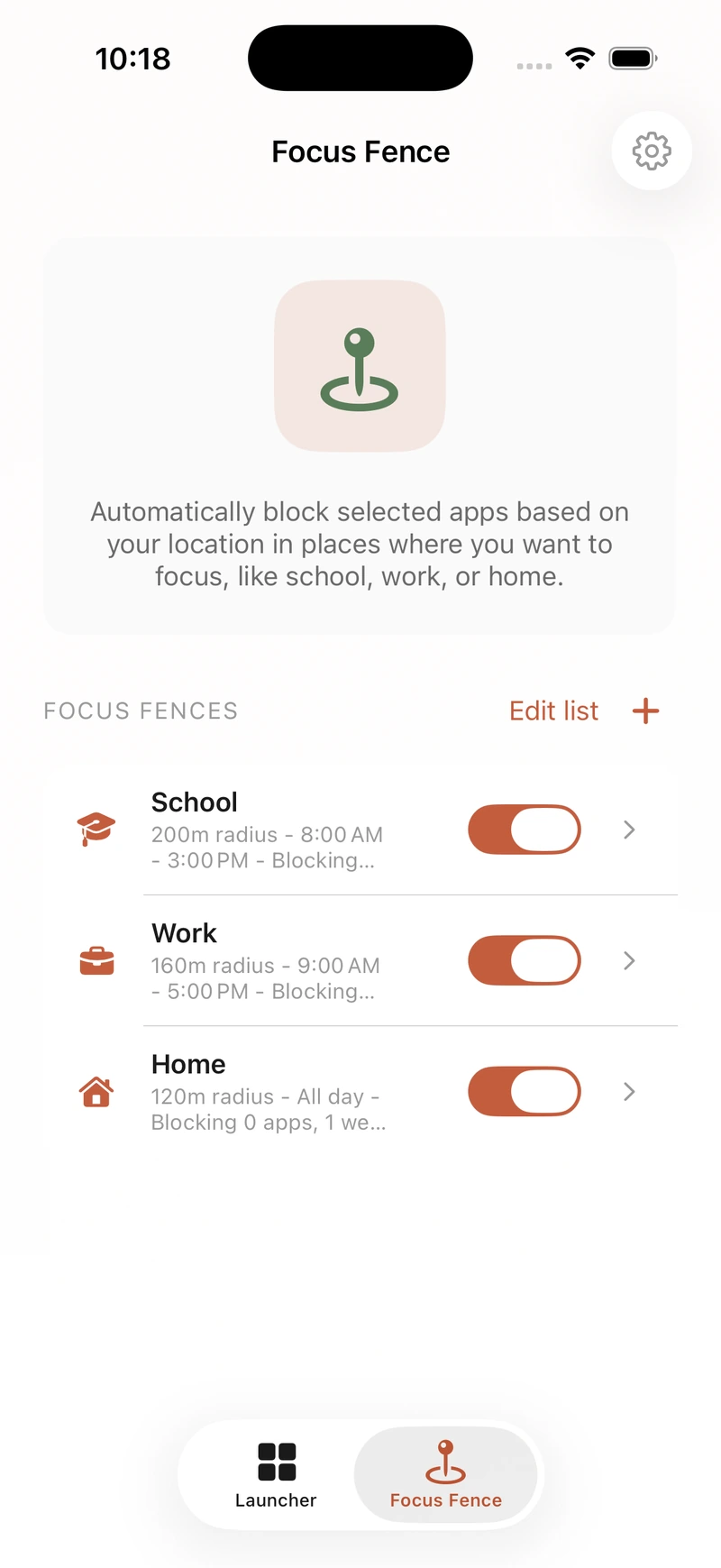
Pick the apps and websites to block, or allow only your essentials.
Rules turn on when you arrive and stop applying when you leave. Add a schedule if you need one.
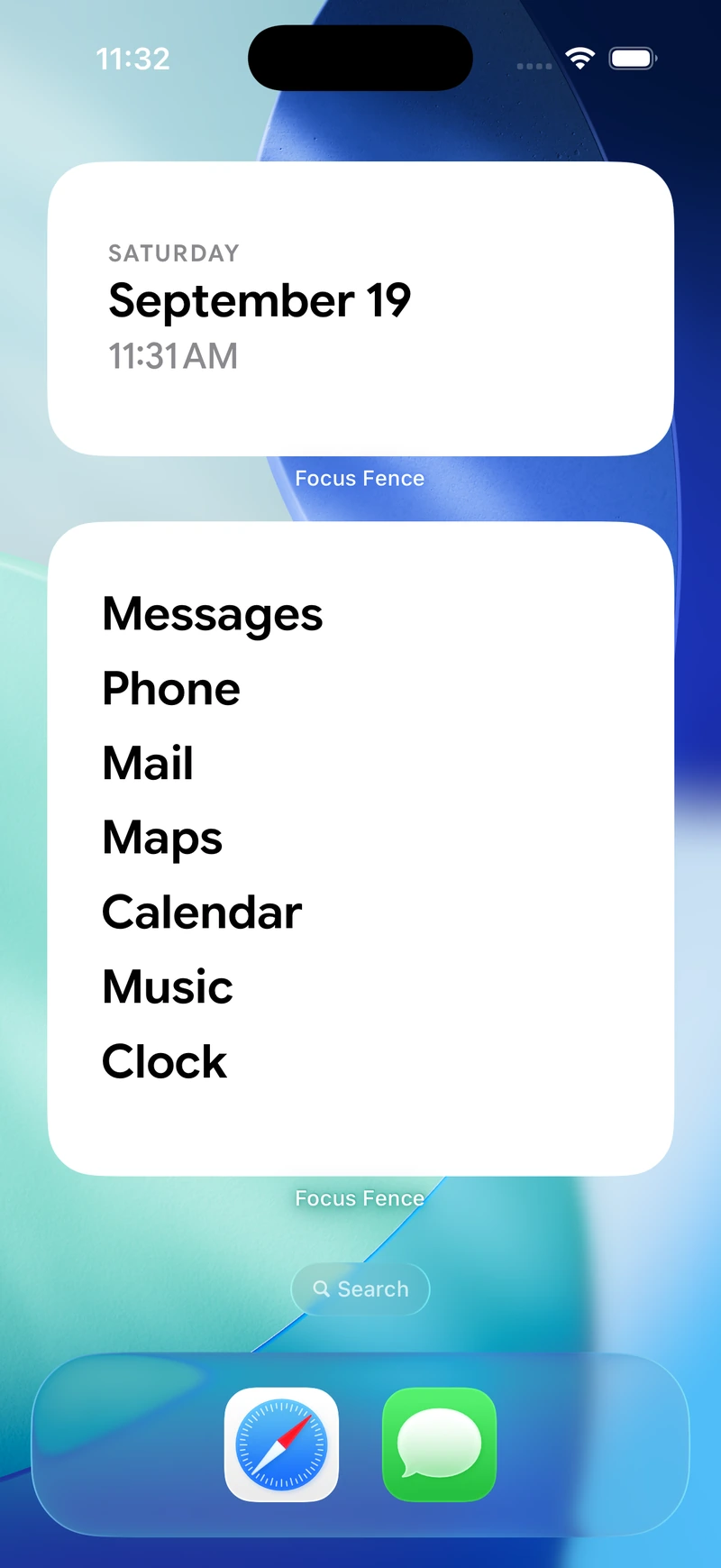
A little extra calm
The included minimalist launcher keeps the apps you mean to use close. Add it as a Home Screen widget and give your essentials a simple, quiet home.
App blocking first. A calmer launcher, too.

Made by a human who needed it
I built Focus Fence because one quick check of my phone kept turning into twenty minutes. I wanted fewer distractions in the places where I wanted to be present.
So I made a little boundary that turns on when I arrive. If you need help or have an idea, I’m the person on the other end of hello@getfocusphone.com.
Less scrolling. More living. — Dean
Find your kind of focus
Head to head
Location-based boundaries or daily screen-time limits?
Compare them →Buyer’s guide
Find an approach that fits how you use your phone.
Read the guide →Make it automatic
Block distractions at the office, then leave the rules there.
See how →Step by step
Five methods, from Screen Time to location rules for school or work.
Read the guide →Step by step
Five methods, and what each one means for your DMs.
Read the guide →Step by step
Five methods, plus Shorts limits and autoplay settings.
Read the guide →
Put a fence around distractions.
Make room for the rest of your day.